Short answer: install a dedicated age verification plugin, set your minimum age (18, 21 or any number), choose a check method (Yes/No buttons or date of birth), and make sure the popup works with your caching plugin and lets search engines through. With the free Advanced Age Verification Popup plugin, the whole setup takes a few minutes and needs no code.
If your WordPress site sells or promotes alcohol, vape products, CBD, tobacco, or other age-restricted content, an age gate is usually the first thing visitors should see. This guide walks you through the setup step by step, explains the choices that actually matter, and shows the mistakes that quietly break age gates on real sites.
What an age verification popup does (and what it doesn't)
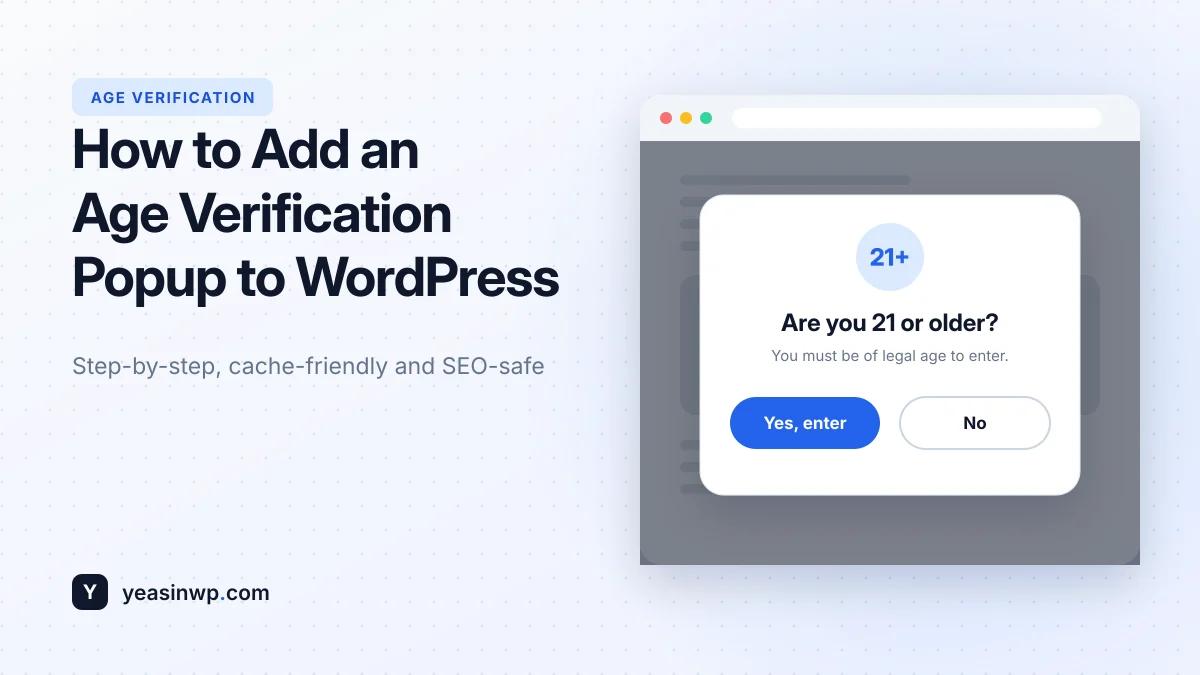
An age verification popup, also called an age gate, is an overlay that appears before visitors can use your site. The visitor confirms they are old enough, a cookie remembers the answer, and they continue browsing. Visitors who say they are under age are redirected away.
It is important to be clear about its limits. A Yes/No popup is a self-declaration: it shows you took a reasonable step to keep minors out, but it does not prove anyone's age. Some industries and regions require stronger checks, such as a date of birth or a photo ID. Rules differ by country and state, so check what applies to your business. This article is a technical guide, not legal advice.
What to look for in a WordPress age verification plugin
Most age gate plugins look similar in screenshots. The differences show up after launch. Before you pick one, check these five points:
- Cache compatibility. If your site uses WP Rocket, LiteSpeed Cache, W3 Total Cache or Cloudflare, a server-side age gate can show the cached "verified" page to new visitors, or show the popup again and again to verified ones. A plugin that checks the cookie in the browser (JavaScript) avoids this.
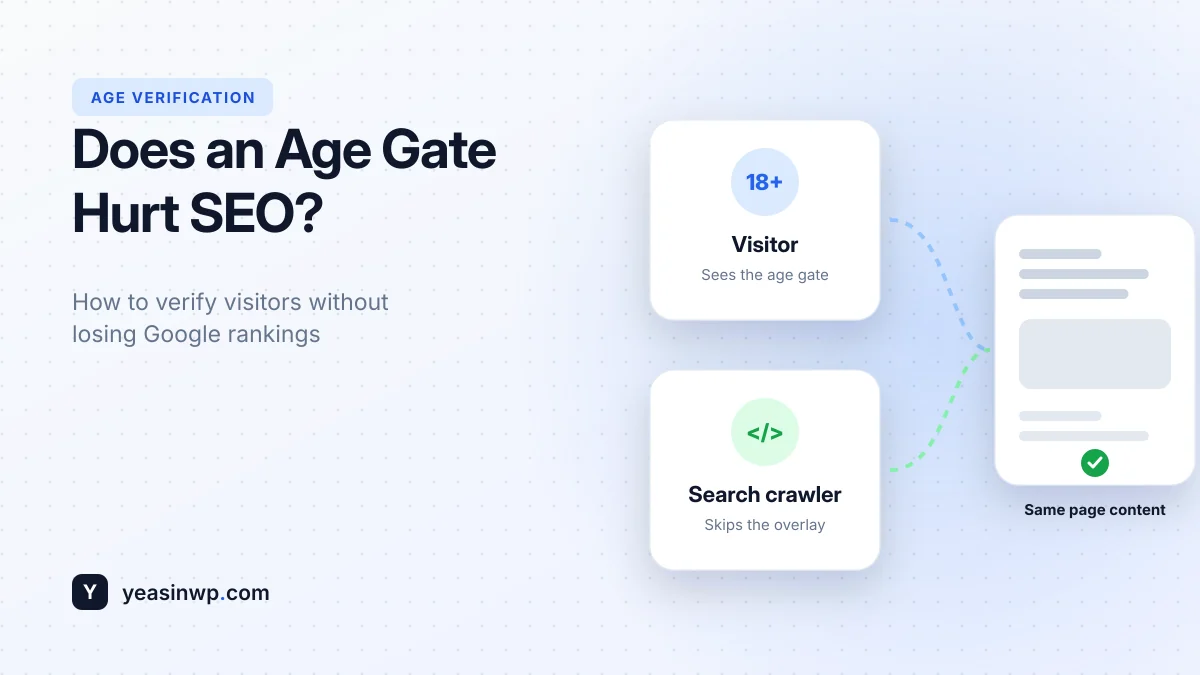
- Search engine bypass. Google needs to read your pages to rank them. A good age gate detects search crawlers and skips the overlay. We cover this in detail in Does an Age Verification Popup Hurt SEO?
- Verification method. Yes/No buttons, date of birth, or both.
- Design control. The popup is the first impression of your brand. You should be able to change colors, text, logo and layout without CSS.
- Performance. The plugin should add only a few kilobytes so it doesn't hurt your Core Web Vitals.
Advanced Age Verification Popup was built around these points. The free version works with WP Rocket, LiteSpeed, W3 Total Cache and Cloudflare out of the box, and it lets search crawlers such as Googlebot and Bingbot through automatically.
Step 1: Install the plugin
- In your WordPress dashboard, go to Plugins → Add New.
- Search for Advanced Age Verification Popup.
- Click Install Now, then Activate.
The plugin requires WordPress 5.0+ and PHP 7.4+, which almost every modern host meets.
Step 2: Set your minimum age
Go to Settings → Age Verification. In the General tab, set the minimum age. Common choices:
- 18 for most adult content, vape and CBD stores in many countries.
- 21 for alcohol and tobacco in the United States.
- Any custom number if your local rules are different.
Selling to several countries with different legal ages? The Pro version lets you set country-based ages, for example 21 for visitors from the US and 18 for visitors from the UK.
Step 3: Choose the verification method
You can use Yes/No buttons, a date of birth calendar, or both.
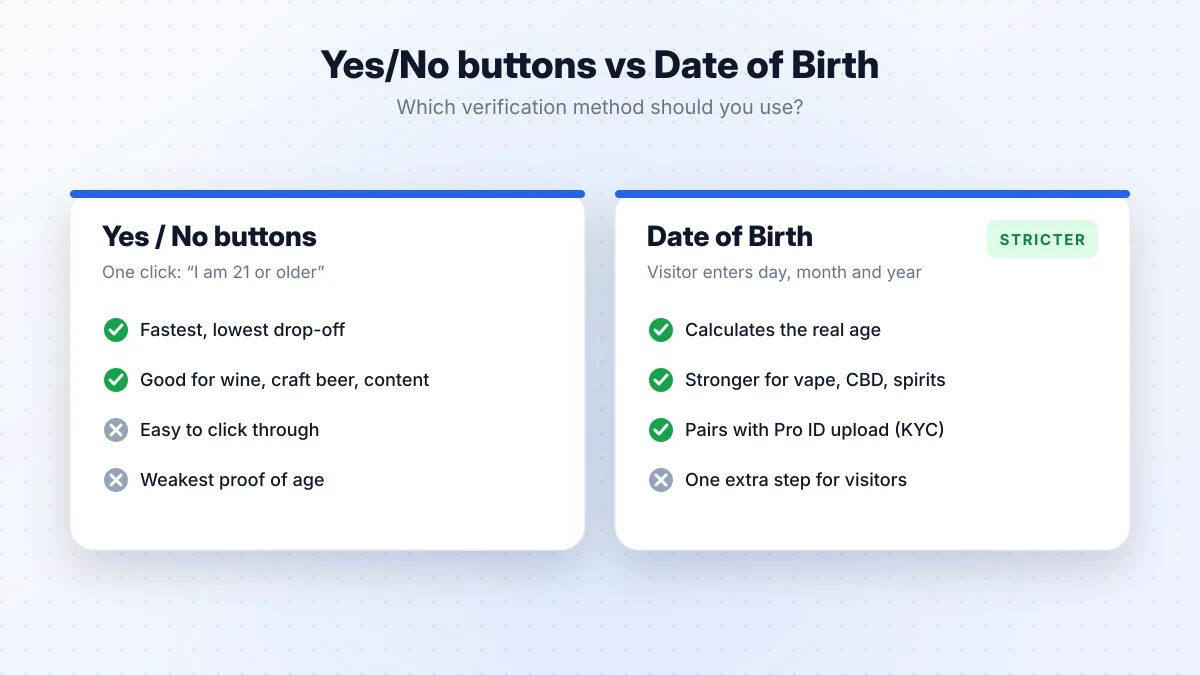
- Yes/No buttons are the fastest. One click and the visitor is in. They work well when the main goal is a clear warning, such as for wine, craft beer or mature content.
- Date of birth asks for the day, month and year and calculates the real age. It is one extra step, but it is a stronger check and a better fit for vape, CBD and spirits stores.
If you are not sure, start with date of birth. It shows more care, and the drop-off difference is usually small.
Step 4: Design the popup to match your brand
In the Text and Images tab:
- Upload your logo with the WordPress media uploader.
- Write a clear title, for example "Are you 21 or older?", and a short subtitle explaining why you ask.
- Change the button labels ("Yes, I am 21+" / "No, take me back").
In the Colors and Styling tab, set the background, button and text colors. The free version includes a modern glassmorphism style with smooth CSS animations, and the popup is fully responsive on mobile.
Pro adds one-click templates for vape, wine and CBD stores, Google Fonts, blur and border radius controls, and full-screen image or video backgrounds.
Step 5: Configure what happens after the check
In the Advanced tab, three settings matter most:
- Remember me. Choose a 30-day cookie or a single-session cookie. 30 days is friendlier for returning customers; a session cookie is stricter.
- Redirect for failed verification. Send under-age visitors to a safe URL instead of leaving them on a blank page.
- Hide for logged-in users. Your customers and admins don't need to verify on every visit.
Step 6: Test it properly
Most broken age gates are never noticed by the site owner, because the owner is always logged in or already has the cookie. Test like a new visitor:
- Open your site in a private/incognito window. The popup should appear.
- Click "No" (or enter an under-age date). You should be redirected.
- Open a new private window, verify, then visit 3–4 pages. The popup should not come back.
- Clear your caching plugin's cache and repeat. Cached pages are where many age gates fail.
- Test on your phone over mobile data.
Common mistakes to avoid
- Blocking search engines. If Google sees only the popup, your pages can drop out of search results. Use a plugin with crawler bypass.
- Redirecting to a separate "age check" page. Redirects add an extra page load and can confuse crawlers. A light overlay on the real page is the better pattern.
- Forgetting translations. If your site is multilingual, the popup text must be translated too. The plugin supports WPML, Polylang and Loco Translate.
- Treating a Yes/No popup as full compliance. If your products legally need stronger checks, add date of birth and, where required, ID verification.
When to upgrade to Pro
The free version covers most single-market sites. Advanced Age Verification Pro is worth it when you need:
- Geo rules: show the gate only in certain countries, set different ages per region, or block restricted regions.
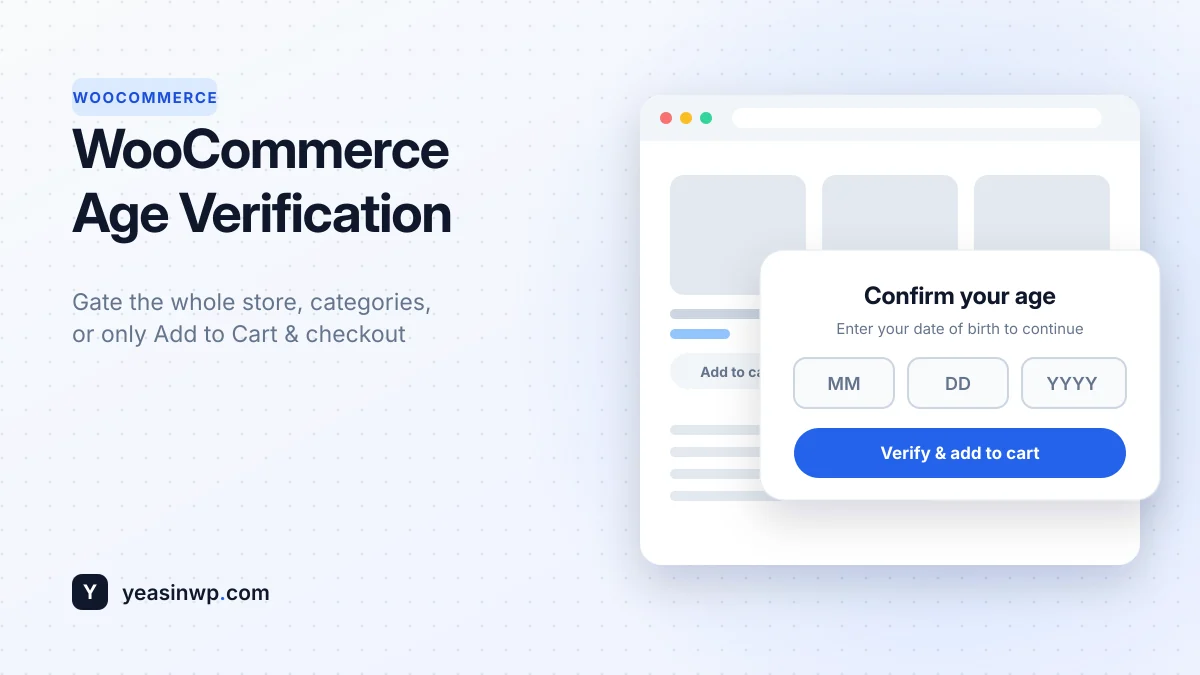
- WooCommerce controls: gate specific product categories, or only ask at Add to Cart and checkout. See our WooCommerce age verification guide.
- Stronger checks: photo ID upload with a moderation queue, plus optional Stripe Identity or Veriff integration.
- Security: anti-bypass lockout and bot protection with Cloudflare Turnstile or reCAPTCHA v3.
- Analytics: views, passes and drop-off by device and country, with GA4 and Meta Pixel events.
Pro is a one-time payment with lifetime updates, starting at $39 for 2 sites.
Conclusion
A good age gate is quick to set up, clear for visitors, invisible to search engines, and reliable with caching. Install the free plugin, set your age and method, match your brand, and test in a private window. If you later need country rules, WooCommerce category locks or ID checks, you can move to Pro without rebuilding anything.