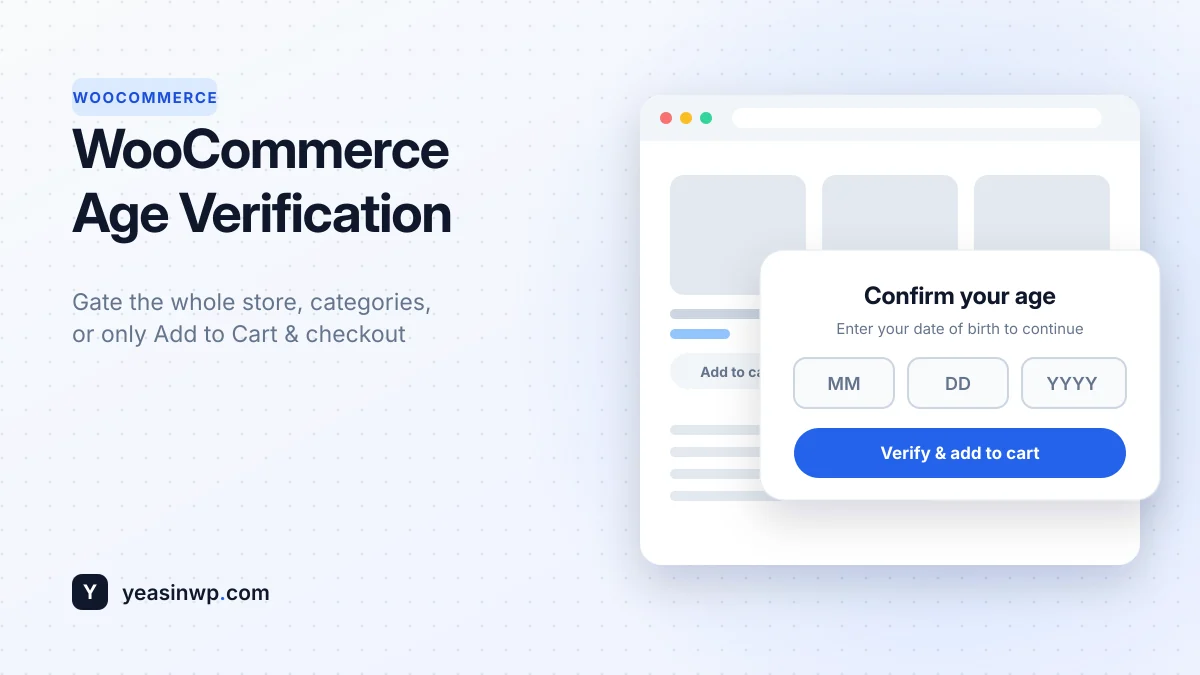
Short answer: there are three ways to add age verification to WooCommerce: gate the whole store, gate only specific product categories, or ask only when a customer clicks Add to Cart or reaches checkout. Which one is right depends on how many of your products are age-restricted and how much friction you can accept.
Online stores selling wine, beer, spirits, vape, e-liquids, CBD or tobacco need a way to keep under-age customers from buying. But every extra step at the start of a visit costs sales. This guide shows how to choose the right scope for your WooCommerce store and set it up without slowing your site or breaking your checkout.
Why WooCommerce stores need age verification
- Legal responsibility. In many countries and US states, sellers of alcohol, tobacco and nicotine products must take steps to prevent sales to minors. Requirements vary, so confirm what applies to you.
- Payment and platform rules. Payment providers and marketplaces often expect age-restricted merchants to show an age check.
- Trust. A clean, branded age gate tells customers you run a responsible store.
Note: an age popup on its own is a self-declaration. For high-risk products or strict regions, combine it with a date of birth check and, where required, ID verification or an age-verified delivery service. This guide is technical, not legal advice.
The three ways to age-gate a WooCommerce store
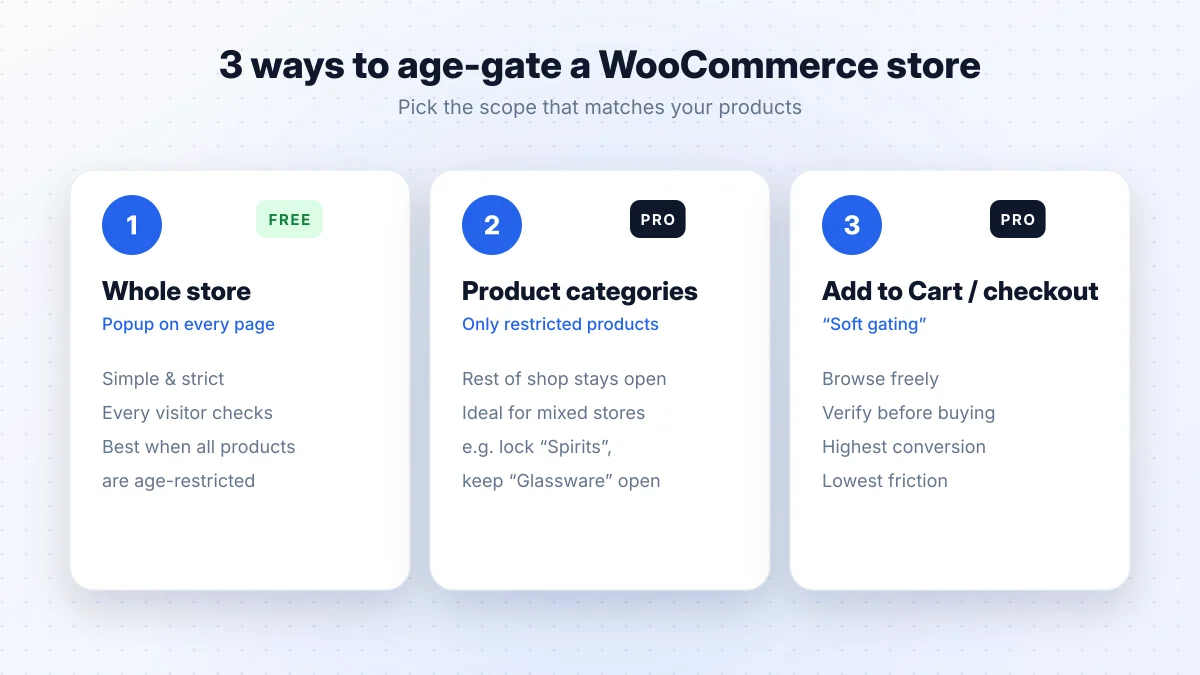
1. Whole store (site-wide popup)
Every visitor verifies before seeing anything. This is the simplest and strictest option, and it makes sense when all your products are age-restricted, for example a dedicated vape shop or online liquor store.
Downside: every visitor, including people just reading your blog, sees the gate first.
2. Specific product categories
The gate appears only on restricted categories and their products. Everything else stays open. This is ideal for mixed stores, such as a kitchen store that also sells wine, or a smoke shop that sells both accessories and nicotine products.
3. At Add to Cart or checkout ("soft gating")
Customers browse freely and verify only when they try to buy. This has the least friction and usually the best conversion, because people see your products and prices before being asked for anything.
Which scope should you choose?
- Everything you sell is age-restricted → whole store.
- Only some categories are restricted → category gating.
- You want maximum conversions and your rules allow browsing → soft gating at Add to Cart / checkout.
- Strict rules for some products → category or checkout gating with date of birth, plus ID upload where needed.
Setting up a site-wide gate (free)
The free Advanced Age Verification Popup plugin is fully compatible with WooCommerce and works on all pages, including shop, cart and checkout.
- Go to Plugins → Add New, search for Advanced Age Verification Popup, install and activate.
- Open Settings → Age Verification.
- Set your minimum age in the General tab (for example 21 for alcohol in the US).
- Choose date of birth as the method. For a store, it is a better check than Yes/No.
- Add your logo and brand colors so the gate looks like part of your shop.
- In Advanced, turn on hide for logged-in users, so returning customers don't verify on every visit, and set a redirect URL for under-age visitors.
For the full walkthrough of every setting, see How to Add an Age Verification Popup to WordPress.
Gating categories and checkout (Pro)
Advanced Age Verification Pro adds WooCommerce-specific controls:
- Display scope: lock the whole site, specific product categories, or only the checkout form.
- Conversion soft gating: let customers browse freely and show the gate when they click "Add to Cart".
- B2B and shipping locks: automatically bypass verified wholesale customers, and tag orders that need an adult signature on delivery.
- Country-based ages: for example 21 for US visitors and 18 for UK visitors, or block regions where you can't sell.
A typical mixed-store setup looks like this:
- Set the display scope to product categories and select your restricted categories (for example "Spirits" and "Vape").
- Turn on soft gating so customers can browse these categories and verify at Add to Cart.
- Use date of birth as the method.
- If your products need stronger checks, enable ID upload (KYC). Customers upload a photo ID with their date of birth, and you approve or reject submissions in a moderation queue. You can also connect Stripe Identity or Veriff for automatic checks.
Don't break your checkout: caching and performance
WooCommerce stores almost always use page caching. Age gates that run on the server can show the wrong version of a cached page: verified visitors see the gate again, or new visitors get through without one. Advanced Age Verification checks the visitor's cookie in the browser with a few kilobytes of JavaScript, so it works with WP Rocket, LiteSpeed Cache, W3 Total Cache and Cloudflare without special rules.
After setup, run this quick test:
- Clear all caches.
- Open a product page in a private window, verify, and add the product to the cart.
- Go through checkout to the payment step. The gate should not appear again.
- In a new private window, enter an under-age date and confirm you are redirected.
Measure the impact on sales
An age gate is part of your sales funnel, so treat it like one. Pro's analytics dashboard shows views, passes and drop-off rates by device and country, and can send an age_gate_passed event to Google Analytics 4 and Meta Pixel. If mobile drop-off is high, try a shorter title, larger buttons, or moving from a site-wide gate to soft gating.
Conclusion
The best WooCommerce age verification setup is the lightest one that still meets your obligations. If everything you sell is restricted, start with the free site-wide gate. If you run a mixed store or care about conversion, gate only the restricted categories and ask at Add to Cart. Use date of birth for stronger checks, add ID upload where the law requires it, and test with caching on before you go live.