Short answer: the easiest way to block countries in WordPress is a geo-blocking plugin that looks up each visitor's IP address in a local GeoIP database and blocks or allows them by country. With the free Yeasin Geo-Blocker plugin you pick the countries, choose whether to protect the frontend, wp-admin or both, and save. Search engine crawlers are let through automatically, so your rankings are not affected.
Most site owners start looking into country blocking after something goes wrong: a flood of spam orders, fake sign-ups, brute-force login attempts, or traffic from countries you don't serve. Others need it for business reasons, such as licensing or shipping limits. This guide explains how country blocking works, how to set it up step by step, and the mistakes that can lock out customers or hurt SEO.
Why block countries in WordPress?
- Stop spam and fake orders coming from regions you don't sell to.
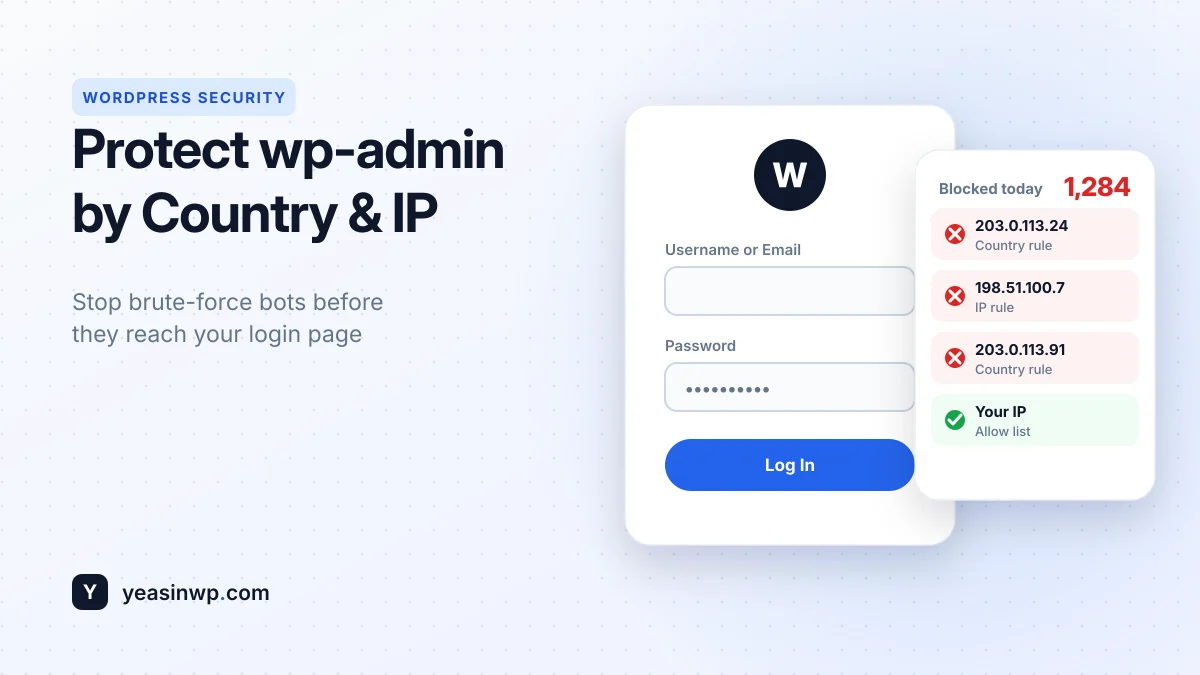
- Reduce brute-force attacks on your login page. We cover this in How to Protect wp-admin by Country and IP.
- Legal and licensing limits: some products, content or services can't be offered in certain countries.
- Cleaner analytics: fewer junk visits make your real traffic easier to read.
How country blocking works
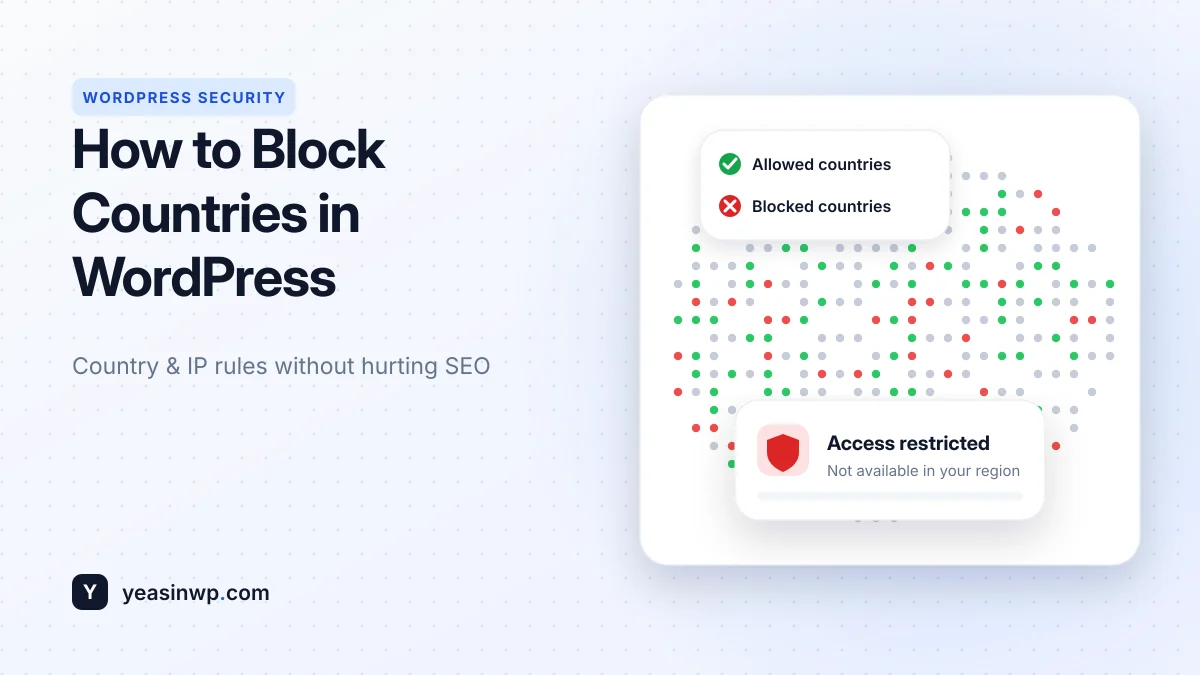
Every visitor has an IP address. A GeoIP database maps IP ranges to countries. When someone visits your site, the plugin checks their IP against the database and applies your rules: show the page, or show a "not available in your region" page.
Two technical details matter a lot:
- Local database vs external API. Looking up every visitor through an external API is slower and sends visitor IPs to a third party. Yeasin Geo-Blocker uses a local GeoLite2 database, so lookups are fast and happen on your own server.
- The real IP behind Cloudflare. If your site is behind Cloudflare or another proxy, a basic plugin may see the proxy's IP instead of the visitor's, and block the wrong people. Yeasin Geo-Blocker supports Cloudflare and proxies and detects the true origin IP.
Blacklist or whitelist: choose your mode
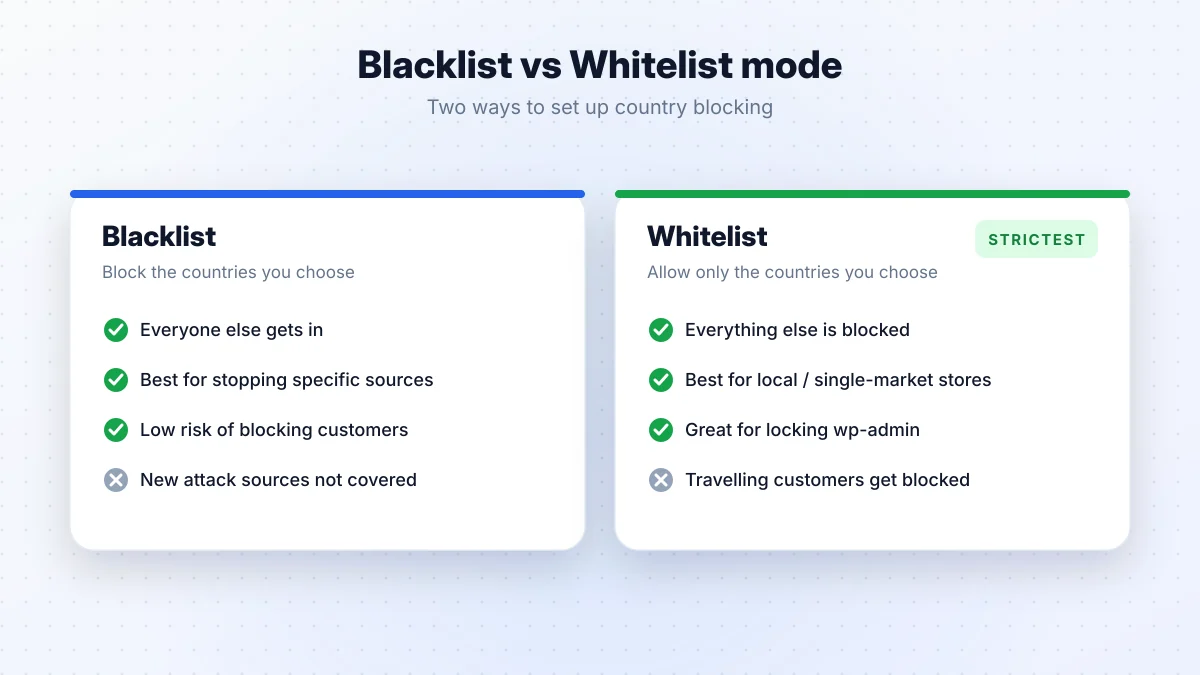
- Blacklist blocks the countries you select and allows everyone else. Use it when you know where the bad traffic comes from and you sell internationally.
- Whitelist allows only the countries you select and blocks everyone else. Use it when you serve one or a few markets, such as a local store that only ships within one country. It is the strictest option.
Step-by-step: block countries with Yeasin Geo-Blocker
Step 1: Install and activate
- In your dashboard, go to Plugins → Add New.
- Search for Yeasin Geo-Blocker, click Install Now, then Activate.
- A new Geo-Blocker menu appears in the admin sidebar.
Step 2: Choose the protection scope
Open the Geo-Blocker dashboard and choose what to protect:
- Frontend: your public pages and store.
- Backend:
wp-adminand the login page only. - Both.
Many sites only need backend protection. It stops most login attacks without affecting a single customer.
Step 3: Pick countries and the mode
Select blacklist or whitelist, then choose the countries. Start small. You can always add more later.
Step 4: Add IP rules (optional)
You can also block or allow individual IPv4 and IPv6 addresses. Two good habits:
- Allow your own IP and your team's IPs before you enable a strict rule, so you never lock yourself out.
- Block specific abusive IPs you see in your logs, even if their country is allowed.
Step 5: Customize the block message
Use the built-in visual editor to write what blocked visitors see. Keep it short and polite, and include a contact email in case a real customer is blocked by mistake (for example, while travelling).
Step 6: Save, test and watch the logs
Click Save Settings. The dashboard shows "Blocked Today" stats and a paginated log of the last 100 blocked attempts with IP, country and the URL they tried to open. Check it after a day or two to make sure you're blocking what you expected.
Will blocking countries hurt my SEO?
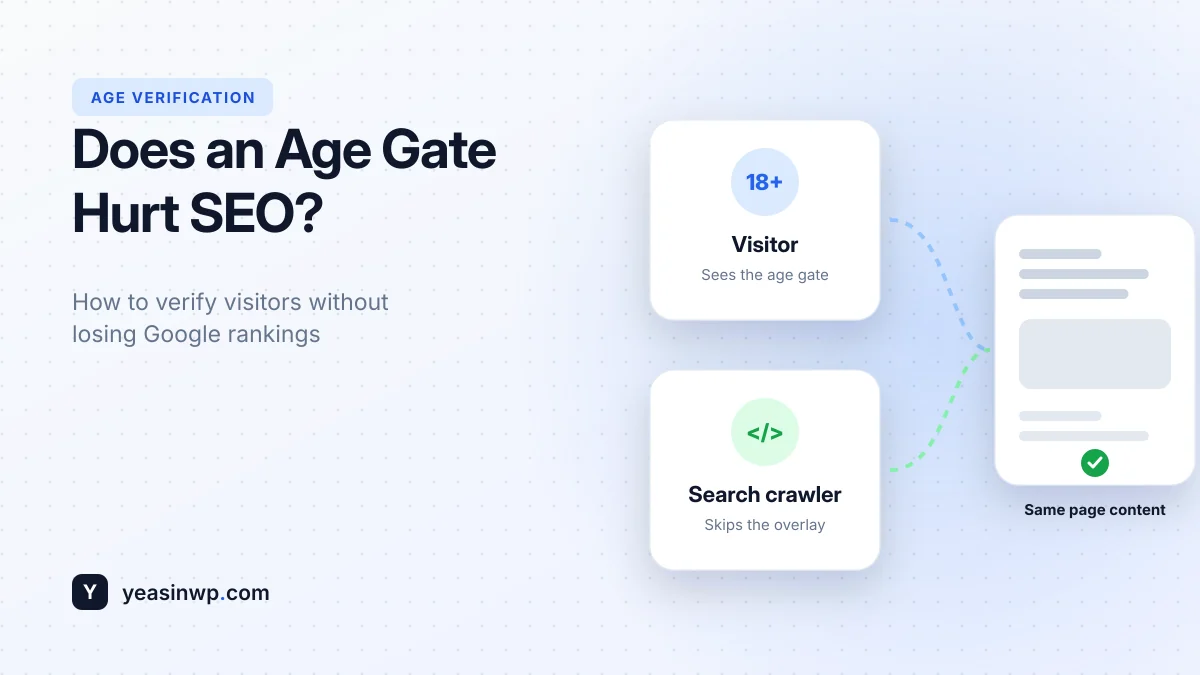
It can, if search engines are blocked. Googlebot mostly crawls from IP addresses in the United States. If you block the US, or use a whitelist that doesn't include it, a basic plugin would block Googlebot too, and your pages can disappear from search. Yeasin Geo-Blocker includes an SEO bot bypass for Google, Bing and Yahoo crawlers, so they can always reach your content.
Mistakes to avoid
- Locking yourself out. Always allow your own IP first, especially with a whitelist on wp-admin.
- Blocking real customers. Check your analytics and order history before blocking a whole country.
- Expecting it to stop everything. VPNs and proxies can hide a visitor's real country. Country blocking reduces bad traffic a lot, but it is one layer of security, not the only one.
- Using it as DDoS protection. A plugin runs after the request reaches your server. For large attacks, also block at the CDN or firewall level (for example Cloudflare).
When you need more control (Pro)
Yeasin Geo-Blocker Pro adds:
- State and city rules, not just countries.
- Smart redirects that send visitors from a region to a localized page instead of blocking them.
- WooCommerce restrictions: hide products, checkout or specific payment gateways by location.
- Geo-dynamic content with shortcodes and Elementor widgets.
- VPN, Tor and API blocking with rate limiting against bots and brute-force attempts.
- Secret bypass links for your team, a fully branded block page, CSV log export, and automatic weekly MaxMind database updates.
Pro is a one-time payment with lifetime updates, starting at $29 for 2 sites.
Conclusion
Blocking countries in WordPress takes a few minutes with the right plugin: pick a mode, choose your countries, decide whether to protect the frontend, wp-admin or both, and allow your own IP first. Keep search engine crawlers allowed, check the logs after launch, and combine country rules with a CDN firewall if you face heavy attacks.