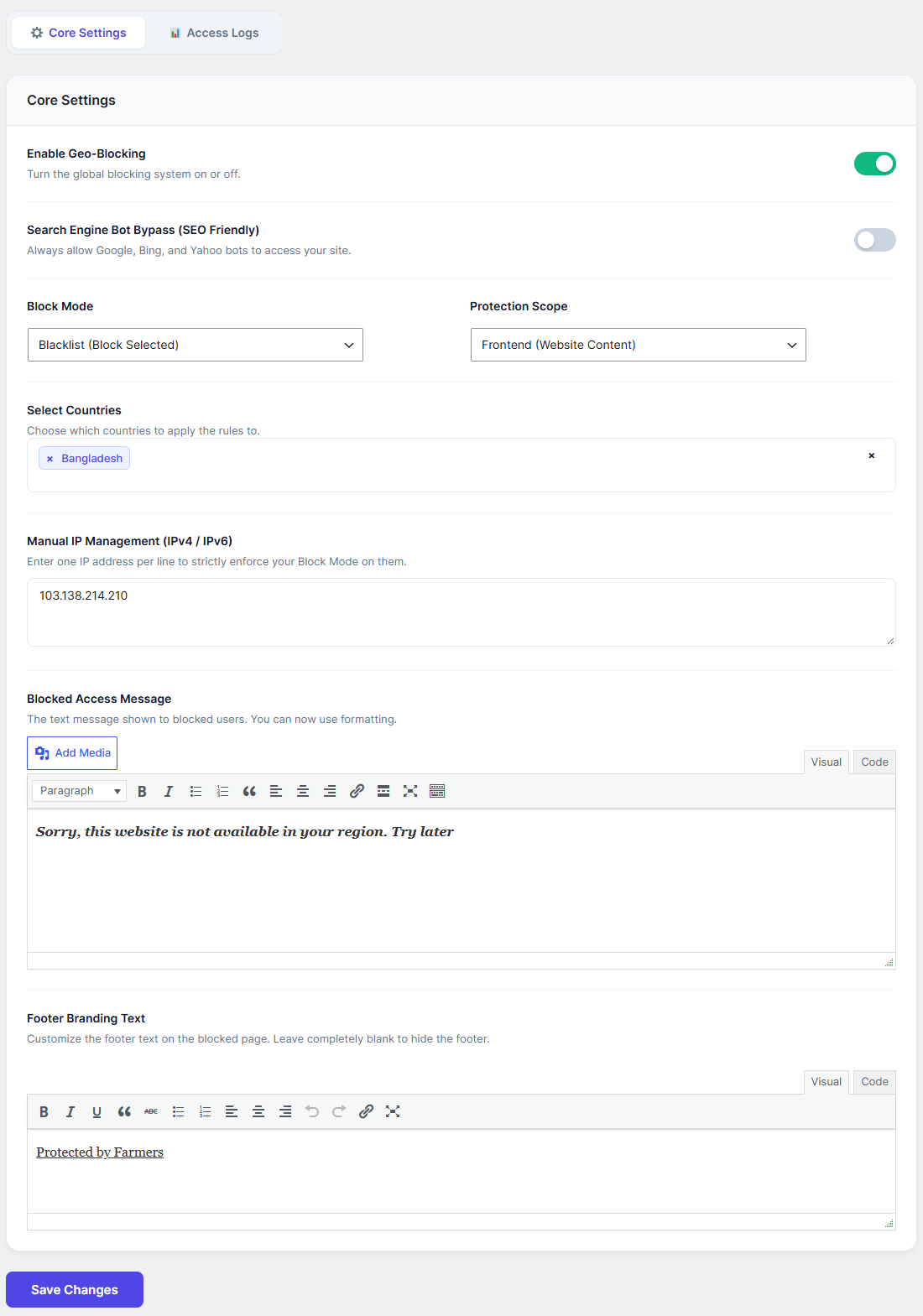
The Core Settings tab is your primary control center for defining who can and cannot access your website. Here is how to configure each option:
Enable Geo-Blocking: Toggle this switch to the "ON" position (green) to activate the global blocking system. If this is off, no rules will be enforced.
Search Engine Bot Bypass (SEO Friendly): It is highly recommended to leave this toggled "ON". This ensures that essential search engine crawlers like Googlebot, Bing, and Yahoo can always access your site, preventing your SEO rankings from dropping.
Block Mode: Choose your restriction strategy:
Blacklist (Block Selected): Visitors from the countries you select will be blocked. Everyone else is allowed.
Whitelist (Allow Only Selected): Only visitors from the countries you select will be allowed. Everyone else is blocked.
Protection Scope: Decide where the rules apply:
Frontend (Website Content): Blocks access to your public pages and posts.
Backend (wp-admin / Login page): Protects your WordPress login and admin area.
Both (Frontend & Backend): Applies total restriction across your entire site.
Select Countries: Click into this field and select the specific countries you wish to apply your "Block Mode" rules to (e.g., selecting "Bangladesh" while on Blacklist mode will block all traffic from Bangladesh).
Manual IP Management (IPv4 / IPv6): Enter specific IP addresses (one per line) to strictly enforce your Block Mode on them, regardless of their geographical location.
Premium Design & Themes (Customizing the Block Screen)
When a visitor is blocked, they are presented with an "Access Restricted" screen. You can customize the messaging on this screen to fit your brand.
Blocked Access Message: Use the provided visual editor to draft the message blocked users will see. You can apply formatting such as bold text, italics, and hyperlinks.
Footer Branding Text: Add your company name or custom text to the footer of the block screen using the minimal visual editor. If you wish to hide the footer entirely, simply leave this field blank.
Save Changes: Always remember to click the Save Changes button at the bottom of the screen to apply your new rules.