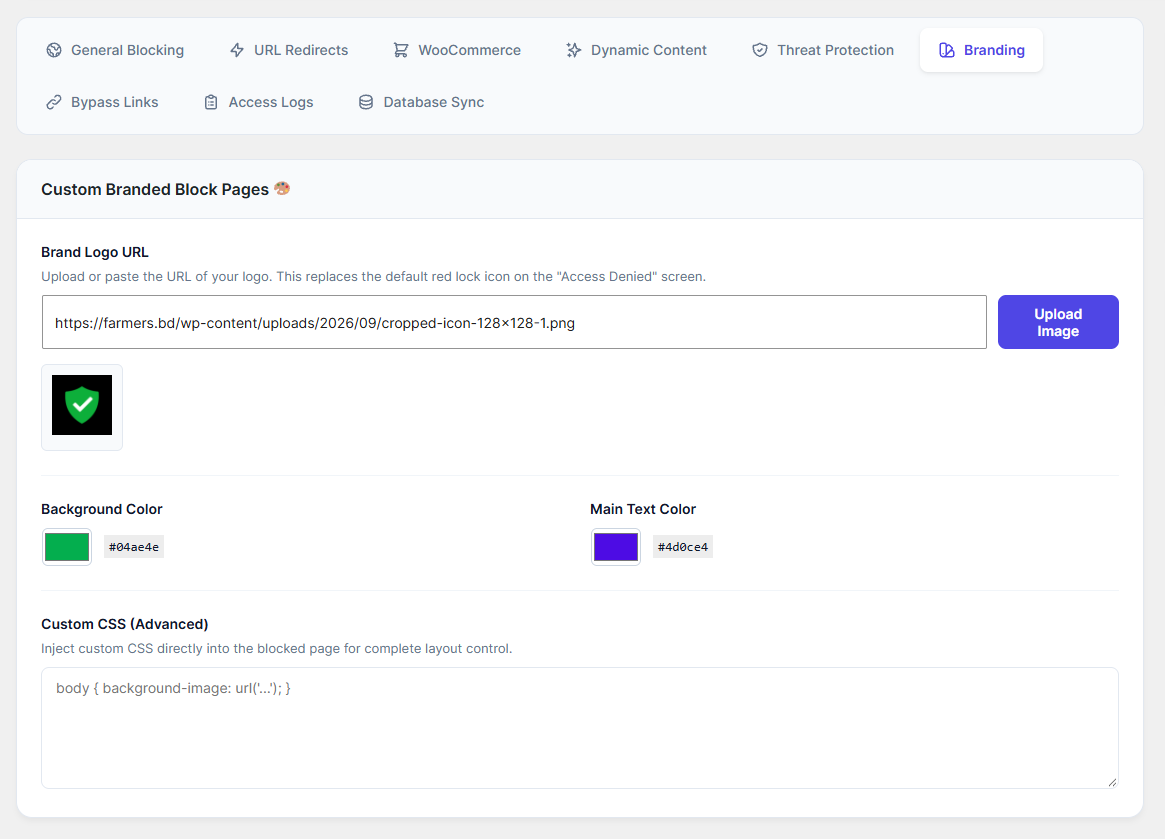
Make the "Access Restricted" screen look professional and perfectly matched to your brand identity.
How to Configure:
Navigate to the Branding 🎨 tab.
Preset Themes: Quickly apply a professionally designed color scheme by selecting Modern Light, Dark Mode, Minimalist, or Custom Colors.
Brand Logo URL: Upload your company logo. This replaces the default shield icon on the block screen.
Typography: Select a font family (e.g., Roboto, Open Sans) for the heading and message text.
Page Layout: Choose how the blocked page is displayed, such as a Centered Card or Full Width layout.
Custom Colors: If you selected the "Custom Colors" theme, use the color pickers to define the Background Color and Main Text Color.
Custom Footer HTML: Add custom HTML, links, or shortcodes below the block message (e.g., a link to your support page).
Custom CSS (Advanced): If you know CSS, you can inject custom code here for complete layout control.
Click Save Settings.