
General Settings: Verification Method, Minimum Age & Popup Text
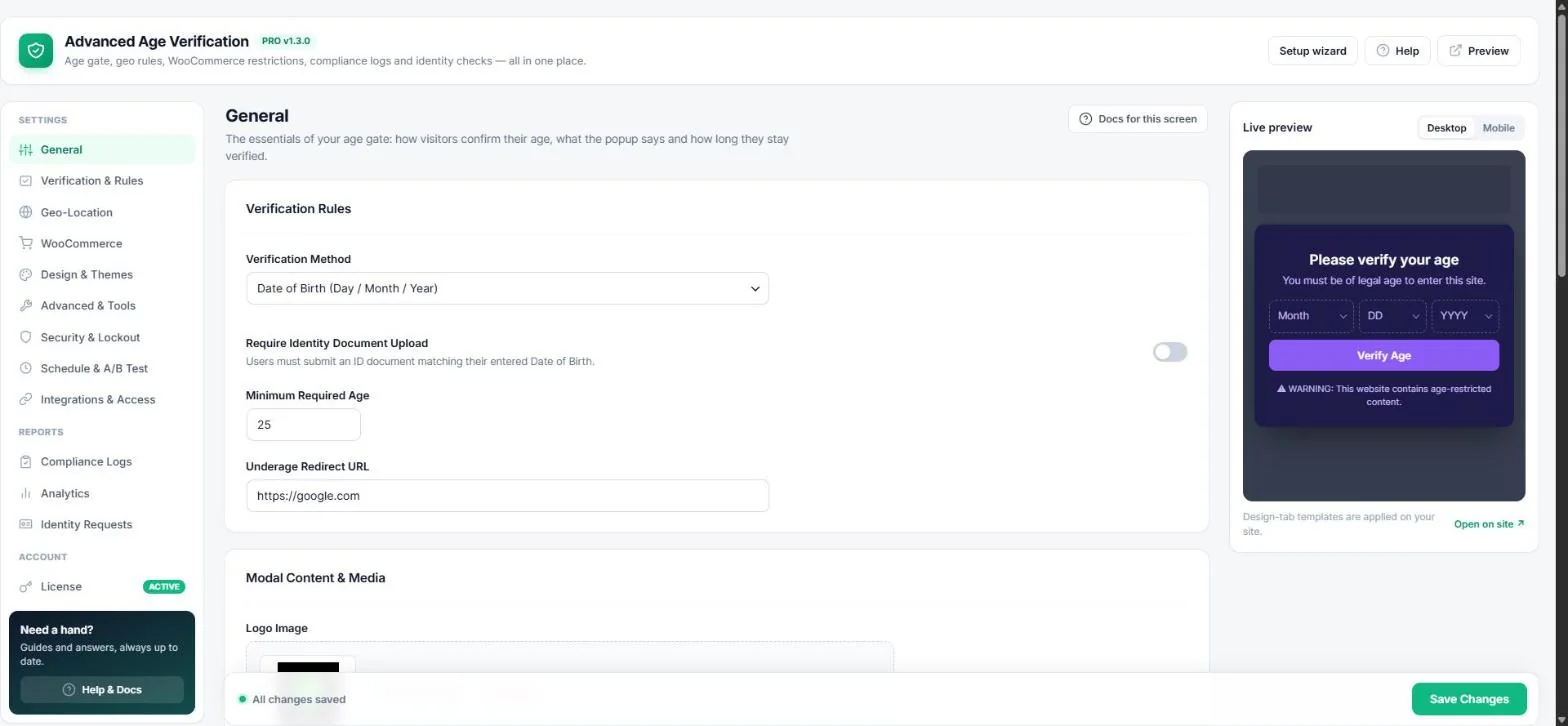
The General tab holds the essentials of your age gate: how visitors confirm their age, the minimum age, what the popup says and how long a visitor stays verified. A live preview on the right updates as you type.
Choose a verification method
| Method | Best for |
|---|---|
| Yes / No buttons | Fastest option with the lowest bounce rate — fine for most blogs and stores. |
| Date of birth (Day / Month / Year) | Visitors pick their birth date; the plugin calculates the exact age. Recommended for alcohol, vape and CBD shops. |
| Manual ID document upload | Visitors upload a photo ID that you approve in Identity Requests. |
| ID check with provider | Automatic ID + selfie check by Stripe Identity, Veriff or AgeChecker.Net — set up a provider. |
With Date of birth you can also switch on Require Identity Document Upload, so visitors must back up the date they entered with an ID.
Note: The date-of-birth picker shows the fields in the visitor's local order (Month / Day / Year in the US, Day / Month / Year elsewhere) and translates the month names automatically.
Set the age and the underage redirect
- Enter the Minimum Required Age (for example 18 or 21).
- Enter an Underage Redirect URL — where visitors go when they are too young or click the exit button.
Tip: Need 21 in the US but 18 elsewhere? Use Minimum age per country or Region rules. For different ages per product use the product / category minimum age.
Write the popup content
- Logo — upload or pick an image from the media library.
- Title, subtitle, button texts and footer warning — keep them short and clear. Example: “Are you 21 or older?”
- Colour palette — pick a ready-made style or your own four colours. It stays in sync with Design → Visual Theme.
Session & caching rules
| Setting | What it does |
|---|---|
| Cookie duration (days) | How long a verified visitor is not asked again. |
| Test mode | Only administrators see the gate while you set it up. Turn off to go live. |
| Show “Remember me” | Lets visitors choose between this session only and the full cookie duration. |
| Bypass for logged-in users | Members and customers who are logged in never see the gate. |
| SEO search crawler bypass | Real Google and Bing bots (checked by IP) skip the gate so your pages stay indexed. |
Important: After you change the popup, clear your page cache so visitors receive the new version.
Read next
Was this guide helpful?