
ID Verification & KYC
Pro feature
ID Verification Providers: Stripe Identity, Veriff & AgeChecker.Net
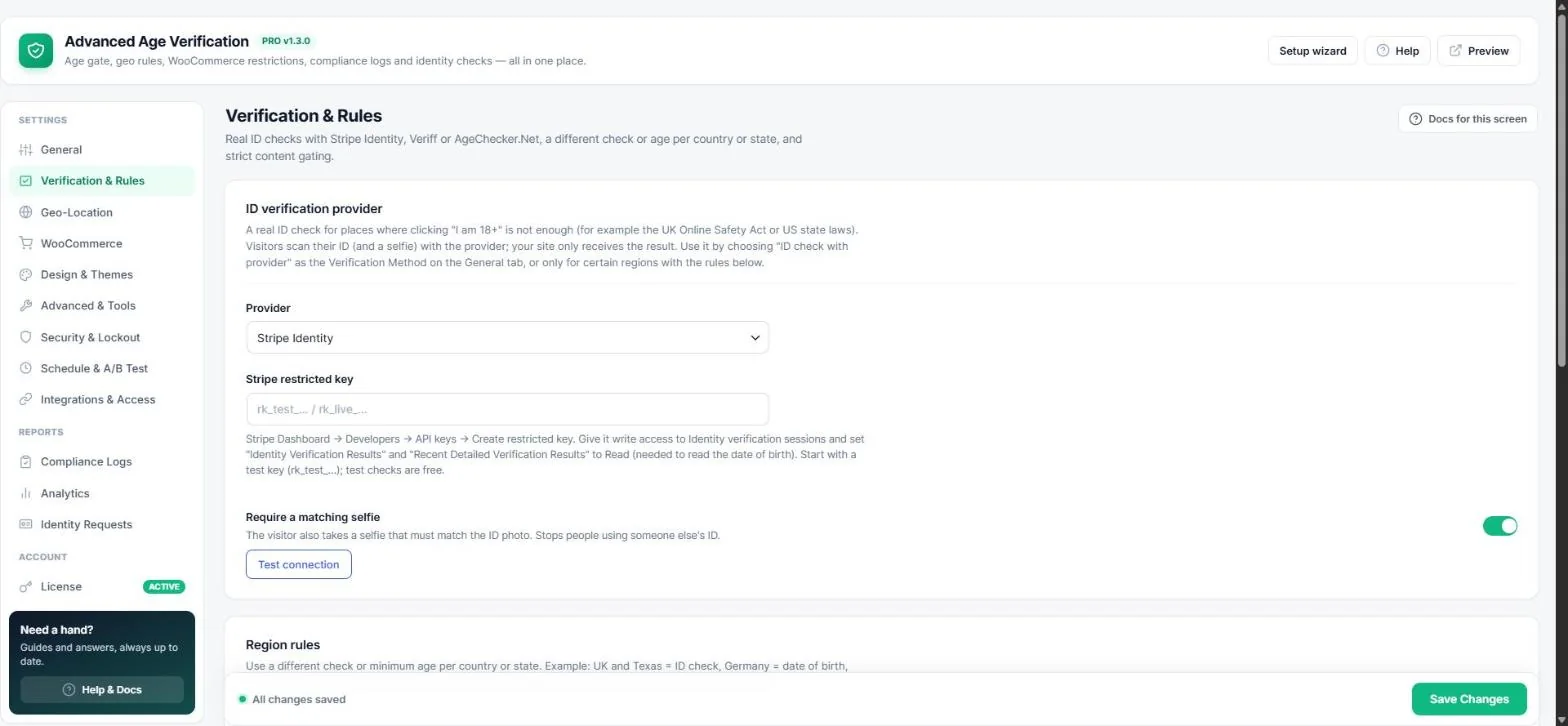
For places where clicking “I am 18+” is not enough — for example the UK Online Safety Act or US state laws — the plugin can run a real ID check. The visitor scans their ID (and a selfie) with the provider; your site only receives the result and the date of birth, never the document.
Which provider should I use?
| Provider | Good to know |
|---|---|
| Stripe Identity | Pay per check, ID + optional selfie match, very easy if you already use Stripe. Test checks are free. |
| Veriff | Strong global document coverage, ideal for international stores. |
| AgeChecker.Net | Built for age-restricted retail in the US; the minimum age is set inside your AgeChecker account. |
Connect Stripe Identity
- In the Stripe Dashboard open Developers → API keys → Create restricted key.
- Give it Write access to Identity verification sessions and Read access to Identity Verification Results and Recent Detailed Verification Results (needed to read the date of birth).
- Paste the key (
rk_test_…first) into Verification & Rules → Stripe restricted key. - Keep Require a matching selfie on to stop people using someone else's ID.
- Click Test connection, then Save Changes.
Connect Veriff
- In the Veriff Customer Portal open your integration's API keys page.
- Copy the API key, shared secret key and (optional) API URL into the matching fields. Leave the URL empty to use
https://stationapi.veriff.com. - Click Test connection and save. Start with a test integration.
Connect AgeChecker.Net
- Copy the API key from your AgeChecker.Net account and paste it in the plugin.
- Set the minimum age (18 or 21) inside your AgeChecker.Net account and add your domain there.
- Click Test connection and save.
Use the provider
Choose ID check with provider as the verification method on the General tab to check everyone, or only for certain places with Region rules (for example UK and Texas).
Important: Always start with test / sandbox keys. Switch to live keys only after a full test, and keep your keys private — they are stored on your server and never shown to visitors.
Read next
Previous
Age-Restricted Content: Per-Page Control, Shortcode, Gutenberg Block & Elementor Widget
Next
Manual ID Upload & the Identity Review Queue
Was this guide helpful?
Thanks for your feedback!