
Scheduling & A/B Tests
Pro feature
Schedule & A/B Testing
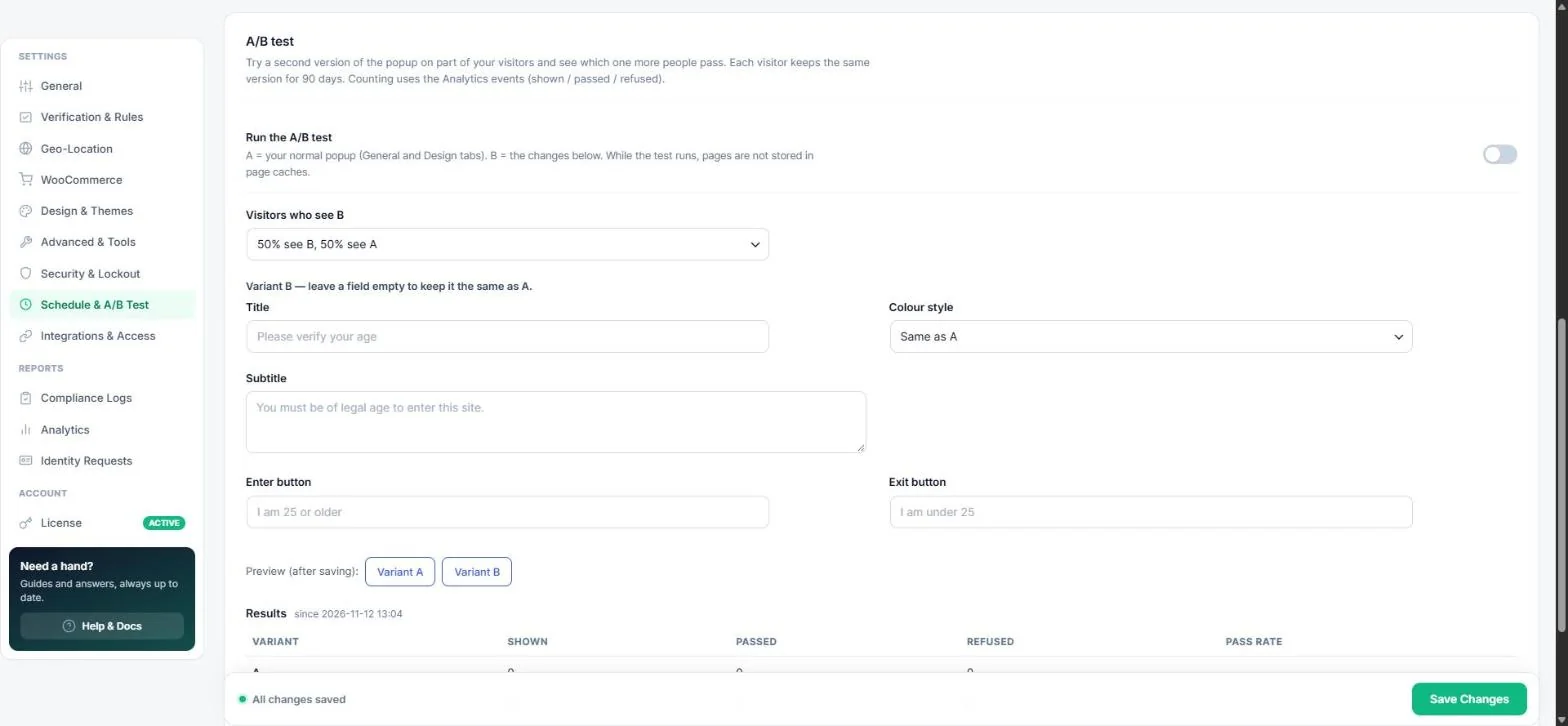
Show the age gate only at certain times, and test a second version of the popup to see which one more visitors pass. Open Age Verification → Schedule & A/B Test.
Schedule the age gate
- Turn on Use a schedule.
- Optionally set a From and Until date and time (empty = no start / no end).
- Pick Days (none = every day).
- Set Daily from / until times, or leave both empty for all day. An “until” earlier than “from” means overnight, for example 20:00 → 06:00.
- Save. The status line tells you whether the gate is on or off right now (in your site's time zone).
Example uses: a launch weekend, a live-stream event, or evenings only where a local rule applies after a certain hour.
Run an A/B test
- Turn on Run the A/B test. Variant A is your normal popup; Variant B is the changes you enter below.
- Choose how many visitors see B (10 – 70%).
- Fill in only what should be different in B — title, subtitle, button texts or colour style. Empty fields stay the same as A.
- Save and use Preview Variant A / B to check both versions.
Each visitor keeps the same version for 90 days. Results (shown, passed, refused, pass rate) appear in the table; a winner is called once each variant has been shown at least 100 times with 95% confidence.
Finish the test
- Use variant B for everyone copies B's texts and style into your normal settings and stops the test.
- Clear results starts counting again.
Note: While a schedule or an A/B test is running, pages with the gate are not stored in page caches (the page depends on the time or the variant).
Read next
Previous
Analytics Dashboard & Marketing Pixels (GA4, Meta)
Next
Webhooks: Connect Zapier, Make, n8n & Slack
Was this guide helpful?
Thanks for your feedback!