
ID Verification & KYC
Pro feature
Manual ID Upload & the Identity Review Queue
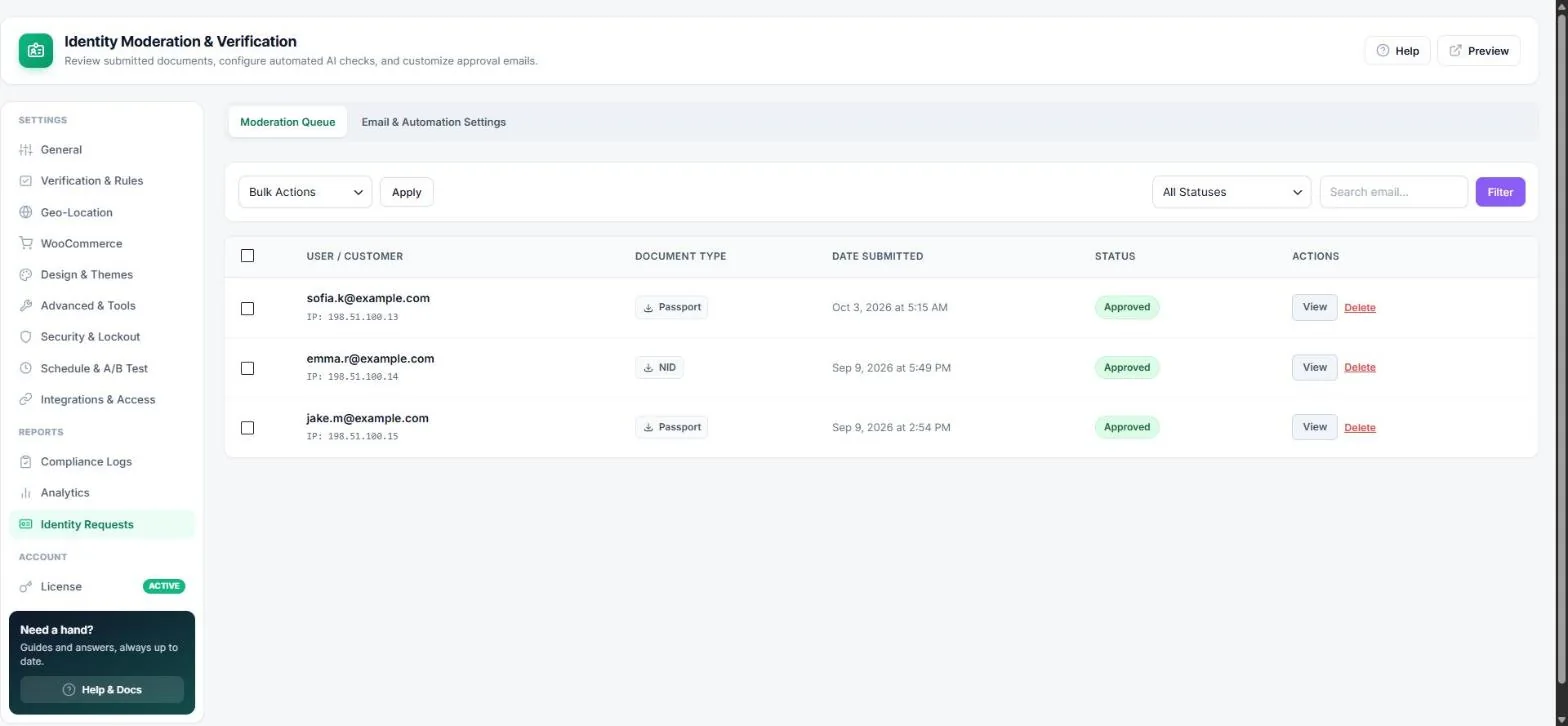
With the Manual ID document upload method (or date of birth + “Require Identity Document Upload”), visitors upload a photo of their ID and you approve it. Everything is managed under Age Verification → Identity Requests.
How it works for the visitor
- The popup asks for a photo ID (JPG, PNG or PDF) and a consent tick box.
- The document is stored in a private vault that cannot be opened from the web.
- When you approve it, the visitor receives an email with a one-click access link. When you reject it, they receive your rejection email.
Review requests
- Open Identity Requests → Moderation Queue. Filter by status or search by email.
- Click View to open the document in a secure lightbox and compare it with the date of birth.
- Click Approve or Reject. Use Bulk actions for many requests at once.
Tip: Give a team member access to this queue without making them an administrator — see Team access.
Email & automation settings
- Email templates — subject and message for approval and rejection, plus a header logo. Use
{site_name}for your brand. - Instantly shred rejected documents — the file is deleted the moment you click Reject.
- AI auto-verification — send documents to an identity API for automatic approval (includes a simulation mode for testing).
Privacy & retention
By default documents are deleted right after approval or rejection. You can keep them encrypted (AES-256), watermark them and delete them automatically after a set number of days — see Compliance & Legal Vault and Data & Privacy. Requests are included in WordPress' own Export / Erase Personal Data tools.
Read next
Previous
ID Verification Providers: Stripe Identity, Veriff & AgeChecker.Net
Next
Geo-Location: Country Targeting, Age per Country & Region Blocking
Was this guide helpful?
Thanks for your feedback!