
Email Reports, Spike Alerts & Webhooks
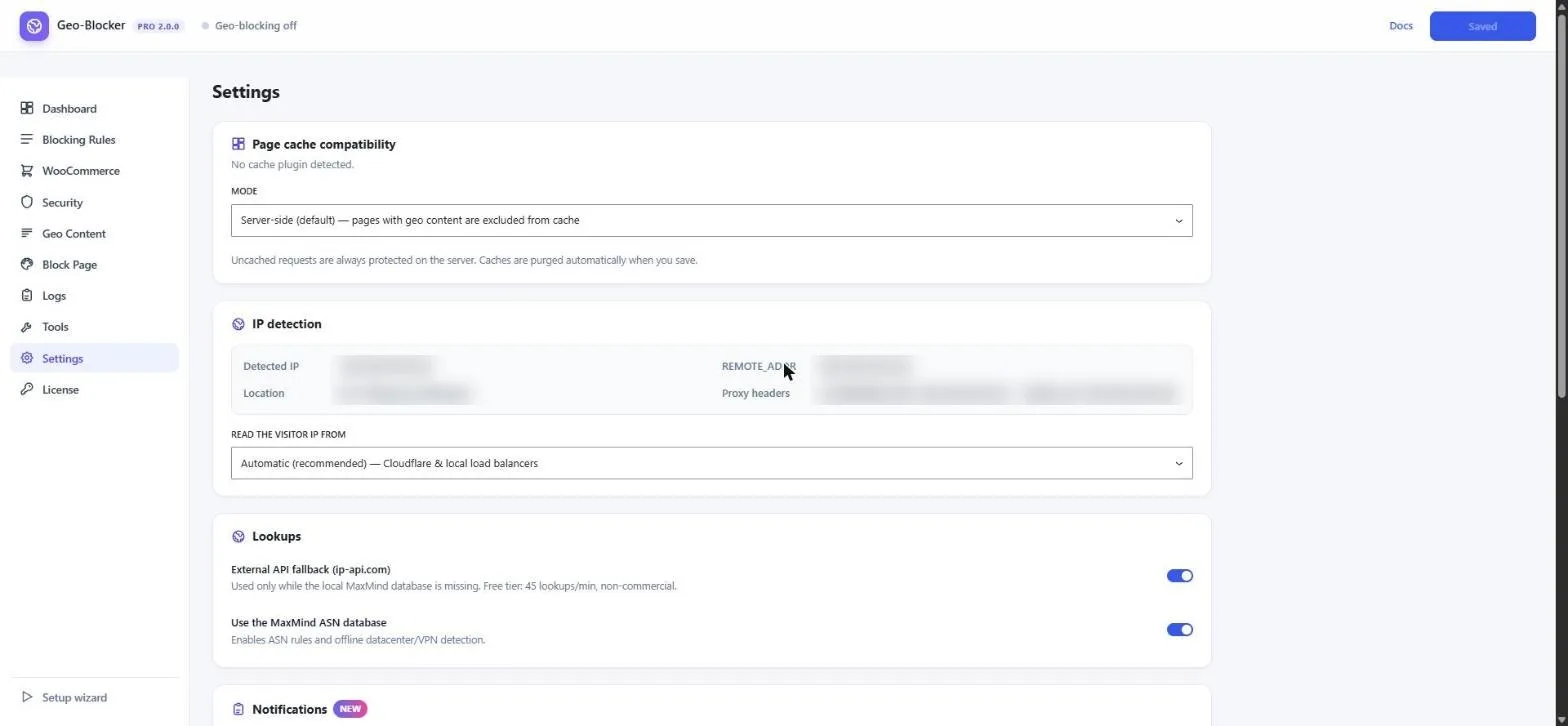
Stay informed without logging in. Configure everything under Geo-Blocker → Settings → Notifications.
Recipients
Enter one or more email addresses separated by commas. Leave empty to use the site's admin email.
Weekly email report
Every Monday morning you receive a summary of the last 7 days: total events, a breakdown by type (blocked, redirected, VPN/Tor, rate limited…), the top countries and the MaxMind database status. Click Send test report to see it now.
Traffic spike alerts
Switch on Traffic spike alerts and set the threshold (events per hour, default 200).
An hourly check compares the last 60 minutes with the threshold. If it's exceeded you get an email (and a webhook message) – at most one alert every 6 hours, so an ongoing attack doesn't spam you.
Webhook (Slack, Discord, Zapier, Make…)
Create an incoming webhook in your tool (Slack: Apps → Incoming Webhooks; Discord: Channel settings → Integrations → Webhooks).
Paste the URL into Webhook URL and save.
Click Send test webhook.
The JSON payload contains text (Slack), content (Discord) and site, so it works out of the box with both.
Emails not arriving?
WordPress sends mail through your server by default, which often lands in spam. Install an SMTP plugin (e.g. WP Mail SMTP, FluentSMTP) and send the test report again. Reports are sent with WP-Cron – on low-traffic sites set up a real cron job, or run wp ygb report.
Was this guide helpful?